
This is a beginner-friendly Excel tutorial to help you get started. We’ll cover the essentials, from basic navigation to creating formulas and charts. Follow along step-by-step:
Goal: Learn to create a simple budget tracker with calculations and a chart.
Part 1: Excel Basics
1. Opening Excel & Understanding the Interface
- Open Excel → Select Blank Workbook.
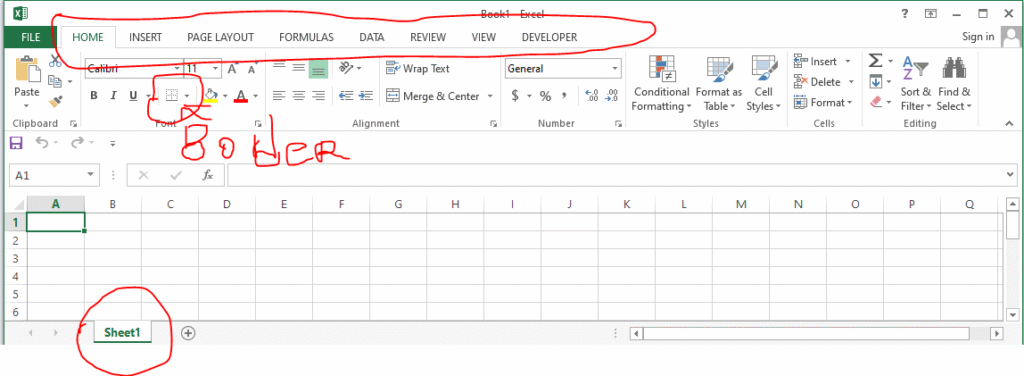
- Key Areas:
- Ribbon: Tabs like Home, Insert, Formulas with tools.
- Worksheet Grid: Rows (numbers) and columns (letters).
- Cell Address: The intersection of a row and column (e.g., A1, B2).
2. Entering Data
- Example: Create a monthly budget.
- In cell A1, type: “Category”.
- In cell B1, type: “Planned”.
- In cell C1, type: “Actual”.
- Fill in categories (e.g., Rent, Groceries, Utilities) in A2 to A5.
3. Basic Formatting
- Bold Headers: Select cells A1:C1 → Click B (Bold) in the Home tab.
- Add Borders: Select the data range → Click the Border icon (🗎) → Choose a border style.
- Adjust Column Width: Hover between column letters (e.g., A and B) → Drag to resize.
Part 2: Essential Formulas
1. Summing Values
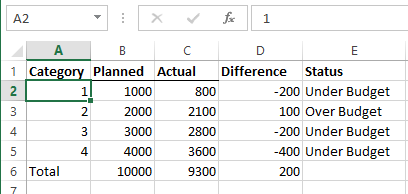
- In cell B6, type:
=SUM(B2:B5)→ Press Enter.
This adds all “Planned” expenses. - Repeat for C6 to sum “Actual” expenses.
2. Calculating Differences
- In cell D1, type: “Difference”.
- In cell D2, type:
=C2-B2→ Press Enter. - Drag the fill handle (small square at the cell’s corner) down to D5 to copy the formula.
3. Using Functions
- AVERAGE: In cell D6, type
=AVERAGE(D2:D5)to see the average difference. - IF Statement:
In cell E1, type: “Status”.
In cell E2, type:=IF(D2<=0, "Under Budget", "Over Budget")→ Drag down to E5.
Part 3: Creating a Chart
- Select Data: Highlight A1:A5 and C1:C5 (hold Ctrl to select non-adjacent ranges).
- Insert Chart: Go to the Insert tab → Choose a Clustered Column Chart.
- Customize:
- Click the chart title to rename it (e.g., “Actual vs. Planned Budget”).
- Use the Chart Design tab to change colors or styles.
Part 4: Saving Your Work
- Click File → Save As.
- Choose a location (e.g., Desktop) and name your file (e.g., “My_Budget.xlsx”).
- Select .xlsx as the file type → Click Save.
Practice Exercise
Create a “Sales Report” with:
- Columns: Product, Q1 Sales, Q2 Sales, Total Sales.
- Use
SUMto calculate “Total Sales” for each product. - Add a bar chart comparing Q1 and Q2 sales.
Pro Tips
- Keyboard Shortcuts:
Ctrl + C/Ctrl + V: Copy/Paste.Ctrl + Z: Undo.F2: Edit a cell.- AutoFill: Type “Jan” in a cell → Drag the fill handle to auto-generate “Feb”, “Mar”, etc.
- Freeze Panes: Keep headers visible while scrolling (View → Freeze Panes).
Next Steps
Once comfortable with basics, explore:
- Pivot Tables (summarize large datasets).
- VLOOKUP/XLOOKUP (search for data in tables).
- Conditional Formatting (highlight cells based on rules).
Leave a Reply